
Realistic AI Voices for Game Dialogue
Add laughs, breaths, coughs, and effects to AI game dialogue for more lifelike NPC voices.
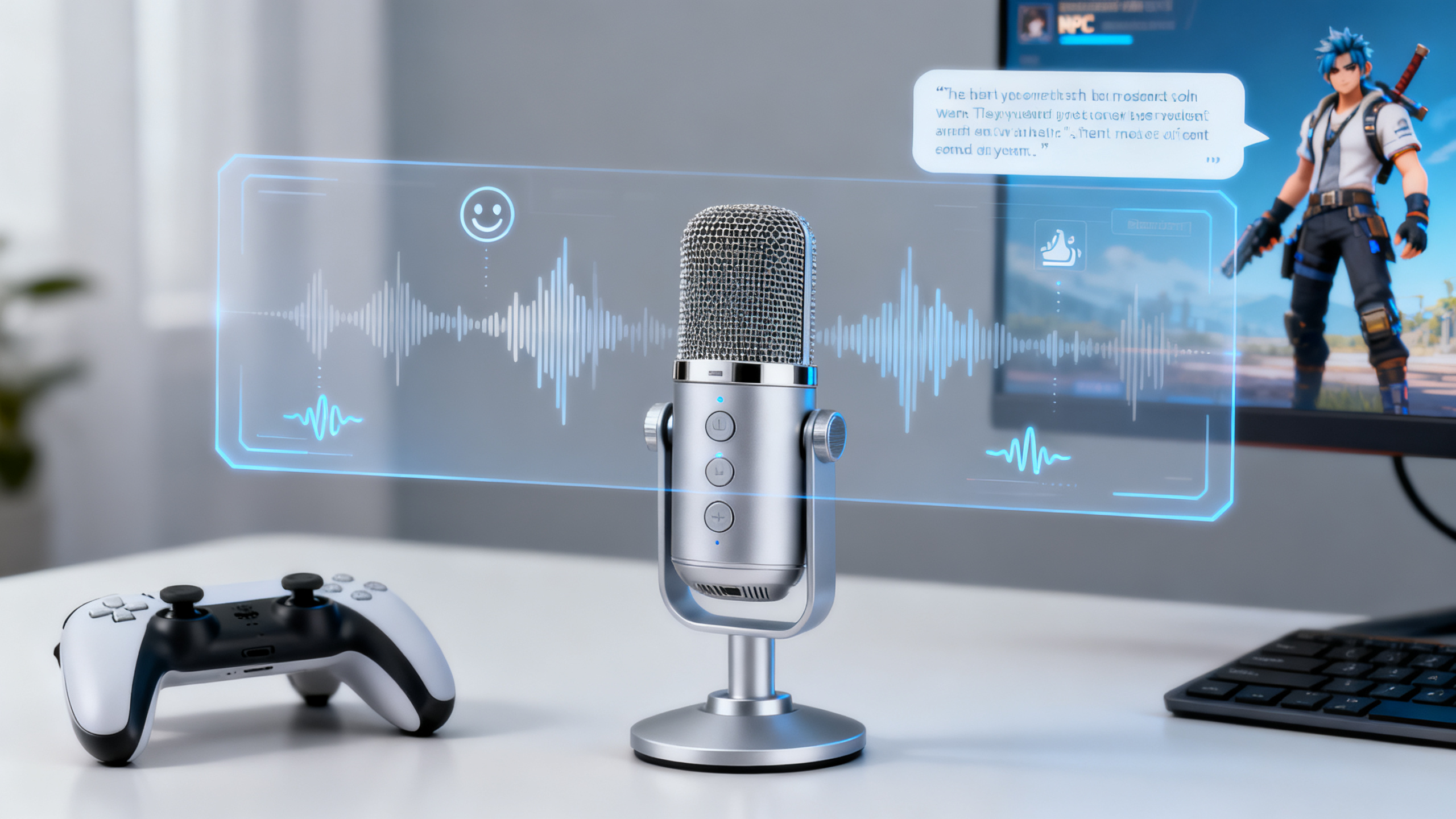
Realistic AI Voice Generator for Games: The Ultimate Guide to Adding Sound Effects
Robotic NPC dialogue breaks immersion faster than a game crash. This guide is for video editors, indie developers, and content creators who need to transform flat AI-generated speech into living, breathing game characters. You'll learn professional techniques to add laughs, coughs, breaths, and ambient sounds to AI dialogue, compare the best tools for the job, and discover how a realistic AI voice generator for games like 1bit AI can streamline your workflow from text to fully-realized audio. We'll cover everything from basic layering to advanced emotional pacing, ensuring your characters sound as real as they look.
Create AI Voiceovers New users get free credits to try it.Quick answer
To add realistic sound effects to AI game dialogue, you need a multi-step post-processing workflow. Start with a high-quality, expressive AI voice generator, then layer in Foley sounds (breaths, laughs) and mix them with a Digital Audio Workstation (DAW) for spatial and emotional realism.
- Choose an AI voice generator with emotional range and support for SSML or pauses (like 1bit AI) for your base dialogue.
- Source or record dedicated Foley sound effects (breaths, grunts, cloth rustles) separately; never rely on the TTS engine to generate them.
- Use a DAW (Audacity, Reaper, Adobe Audition) to align, layer, and mix the dialogue track with sound effect tracks.
- Apply subtle audio processing: light compression, EQ to match the voice tone, and reverb matching the game environment.
- For multilingual TTS for games, ensure your chosen generator supports native-sounding accents and emotional delivery in your target languages.
- Test the final mix in-game, as speaker spatialization and background music will change how the dialogue is perceived.
- Tools like 1bit AI provide a fast starting point with lifelike voices, and new users get free credits to experiment with the workflow.
Table of contents
- Why Sound Effects Make or Break AI Game Dialogue
- Step-by-Step: How to Add Breaths, Laughs & Coughs to AI Voice
- Choosing the Best AI Voice Generator for Game Development
- Mastering Multilingual TTS for Games with Localized Sounds
- Common Mistakes & Troubleshooting Lifelike Game Narration
- FAQ
Why Sound Effects Make or Break Your Realistic AI Voice Generator for Games
The quest for a realistic AI voice generator for games isn't just about finding a "human-like" tone. It's about creating a holistic audio persona. Raw text to speech for game dialogue often lacks the subconscious audio cues that signal life: the quick inhale before a line, the soft chuckle under the breath, the weary sigh. These micro-sounds are what separate a convincing NPC from an automated telephone menu.
Consider a tavern scene. A barkeep generated with a standard AI voiceover generator might say, "What'll it be?" flatly. The same line, preceded by a cloth wipe sound and a slight breath, then followed by the clink of a mug, places the character in the world. The sound effects provide spatial and physical context that the voice alone cannot. This is the core challenge of lifelike game narration—it's an assembly of parts, not a single output.
Use 1bit AI Text To Speech when you want a faster workflow
Starting with a high-quality, expressive base voice cuts your post-processing time in half. 1bit AI's voices have built-in natural rhythm and intonation, providing a more malleable and human-like raw audio track. This means you spend less time fixing robotic cadence and more time creatively layering in the laughs, gasps, and environmental sounds that define your character. New users get free credits to test this foundational step.
Create AI VoiceoversStep-by-Step: How to Add Breaths, Laughs & Coughs to AI Voice
This is the core tutorial for adding sound effects to AI voice. We'll transform a generic AI line into a performance. Let's use the line "I've seen things you wouldn't believe..." for a weary veteran character.
Step 1: Generate the Base Dialogue with Strategic Pauses
Don't generate one continuous audio file. Use your AI tool's SSML or break tags to insert intentional pauses where breaths or effects will go. In 1bit AI, you could structure the text as: "I've seen things... [PAUSE] you wouldn't believe..." Export this as a high-quality WAV file. The pause creates a natural edit point.
Step 2: Source Your Foley Sound Effects
You need separate audio files. For our veteran: a slow, shaky inhale; a dry, subtle cough; a low, humorless chuckle. Use free libraries like Freesound.org, record them yourself, or use dedicated Foley packs. Ensure they are in the same sample rate (typically 44.1kHz or 48kHz) as your dialogue.
Step 3: Align and Layer in a DAW
Import all files into a DAW like Audacity (free) or Reaper. Place your base dialogue on Track 1. Create new tracks for each sound type. Drag the shaky breath to start just before "I've seen things...". Place the subtle cough in the pause. Layer the low chuckle to slightly overlap the end of "believe."
Step 4: Mix and Process for Cohesion
This is how to make AI voices less robotic for games. Lower the volume of your Foley effects to sit "behind" the dialogue (approx. -10dB to -15dB lower). Apply a gentle high-pass filter (around 80Hz) to all tracks to remove rumble. Use a light compressor on a bus track containing all elements to glue them together. Add a touch of reverb with a short decay to place them in a shared space.
Step 5: Export and Implement
Export your final mix as a mono or stereo file per your game engine's requirements. Name it clearly (e.g., Veteran_Line01_Final.wav). Test it in the game engine alongside ambient sounds. Be prepared to go back to Step 4 and adjust levels if the effects get lost or become distracting during gameplay.
 A practical view of layered audio tracks: dialogue on the main track, with sound effects on separate tracks below for precise mixing.
Choosing the Best AI Voice Generator for Game Development
Not all AI voiceover generators are built for the nuanced needs of game dev. Your choice dictates your post-production workload. Here’s a decision framework focused on creating realistic AI voice for games.
Critical Feature Ideal for Game Dev (e.g., 1bit AI) Less Suitable Emotional Range & Expressiveness Offers multiple emotions (joyful, sad, terrified) per voice, allowing for varied line reads without switching characters. Flat, single-style delivery that requires heavy audio manipulation to sound different. Pause & Speed Control (SSML/Prosody) Fine-grained control over speech rate and pauses, essential for timing sound effects and breaths. Limited or no control, resulting in unnaturally rushed dialogue that's hard to edit. Audio Output Quality & Format High-fidelity WAV export (44.1kHz/48kHz, 16-bit+), providing a clean source for mixing. Only MP3 or low-bitrate output, introducing compression artifacts before you even start. Voice Consistency Extreme consistency across sessions and text lengths, ensuring your NPC sounds the same in patch 1.0 and 2.0. Inconsistent tone or timbre between generations, breaking character immersion. Cost for Bulk Generation Predictable pricing or credits for generating hundreds of lines for numerous NPCs and languages. High per-line costs that make generating extensive dialogue trees prohibitive.When evaluating, ask: "Does 1bit AI support sound effects in TTS?" The direct answer is that advanced TTS engines generate the voice, while sound effects are added in post-production. However, a generator like 1bit AI provides the optimal raw material—expressive, controllable, high-quality audio—that makes adding those breaths and laughs straightforward and effective.
Mastering Multilingual TTS for Games with Localized Sounds
Creating a realistic AI voice generator for games with global appeal means nailing multilingual TTS for games. It's not just about translating text and generating speech. A sigh in a French noir scene sounds different from a sigh in a Japanese samurai drama. The sound effects must localize too.
Actionable Tip: When generating dialogue for a non-native language, collaborate with a native speaker or cultural consultant. They can advise on appropriate non-verbal sounds. For example, a sound of agreement in English might be a hum (“mm-hmm”), while in Japanese it might be a sharp inhale (“sss”) or a nod sound. Source or record Foley effects that match the character's cultural context. Use a multilingual AI voiceover generator that offers native-sounding voices for your target languages, ensuring the base performance has correct intonation and rhythm before you even add effects.
FAQ
How do you add realistic sound effects to AI dialogue?
You add them in post-production using a Digital Audio Workstation (DAW). First, generate clean AI dialogue with intentional pauses. Then, import it into a DAW like Audacity. On separate tracks, layer professionally sourced or recorded sound effect clips (breaths, laughs). Precisely align them with the dialogue, adjust volumes to be subtle, and apply light audio processing (EQ, compression, reverb) to blend everything into a single, cohesive performance that sounds natural in the game environment.
What is the best AI voice generator for game development?
The best generator balances high-quality, expressive output with fine control and consistency. Look for features crucial for games: emotional variety per voice, precise speed/pause control (SSML), high-fidelity WAV export, and stable voice timbre across thousands of lines. Tools like 1bit AI are built for this, offering a strong foundation of lifelike voices that require less post-processing, allowing developers to focus on layering sound effects and implementing audio in-engine efficiently.
Can you add breaths and laughs to text to speech?
Yes, but not directly through the TTS engine itself. The TTS generates the spoken words. To add breaths and laughs, you must treat them as separate sound effects (Foley). You generate the core dialogue, then use audio editing software to insert high-quality breath and laugh sound clips at appropriate moments—often in natural pauses or overlapping the speech slightly. This manual layering process is what creates true realism, as it mimics how a human voice actor would perform.
How to make AI voices less robotic for games?
Start with a high-quality, expressive AI voice generator. Then, employ three techniques: 1) Vary pacing: Use SSML to add pauses and speed changes for a natural rhythm. 2) Layer Foley: Add subtle breaths, mouth sounds, and effort noises. 3) Process the audio: Apply gentle compression to even out dynamics, subtle EQ to warm the tone, and environmental reverb to place the voice in the game world. This multi-step approach transforms a flat signal into a living performance.
Does 1bit AI support sound effects in TTS?
1bit AI generates the high-quality, lifelike voice audio that serves as the essential foundation for your game dialogue. The platform focuses on delivering exceptionally realistic and controllable speech. The addition of sound effects like laughs, coughs, and breaths is done in the subsequent audio editing and mixing stage using dedicated software (DAWs). This industry-standard workflow gives you maximum creative control, allowing you to choose and blend the perfect effects to match each unique character and scene.
Conclusion
Creating a truly realistic AI voice generator for games experience is an art of assembly. It begins with selecting a powerful, expressive TTS engine capable of delivering nuanced base dialogue. From there, the magic happens in the mix: the strategic layering of breaths, laughs, and environmental Foley, all carefully balanced and processed to create a single, believable audio entity. By following the step-by-step tutorial, avoiding common mixing pitfalls, and leveraging tools designed for depth and control, you can give every NPC, narrator, and hero a voice that feels authentically alive. The result is deeper immersion, stronger emotional connection, and a professional-grade audio landscape for your players.
Create AI Voiceovers New users get free credits to try it.