
Turn Meeting Notes into Infographics
Convert meeting notes into process infographics, workflow diagrams, and aligned team summaries.
How to Turn Meeting Notes into a Process Infographic
You've just finished a crucial planning meeting. Your notes are filled with decisions, action items, and workflow steps—but they're trapped in text. Transforming these notes into a visual process infographic is the fastest way to align your team, communicate complex workflows, and ensure nothing falls through the cracks. This step-by-step guide is for marketers, founders, teachers, consultants, and operations teams who need to visualize meeting outcomes quickly. You'll learn a proven method to extract key information from your notes, structure it for visual storytelling, and create a professional process infographic in under 10 minutes using AI tools like 1bit AI Infographic Generator. We'll cover everything from identifying process steps in your notes to choosing the right visual layout for maximum clarity.
Create Infographics New users get free credits to try it. Example of a professional process infographic generated from meeting notes, visualizing a client onboarding workflow.Quick answer
Yes, you can turn meeting notes into a process infographic in 10 minutes by extracting key steps, decisions, and owners, then using an AI workflow diagram generator to visualize the structure automatically. The fastest method involves cleaning your notes, identifying the core process flow, and feeding structured points into a tool like 1bit AI Infographic Generator.
- Extract action items, decisions, and sequential steps from your raw notes.
- Structure the information into a clear beginning, middle, and end for the process.
- Use an AI infographic generator to transform the structured text into a visual flowchart or diagram.
- Focus on clarity over complexity—each visual element should represent one key meeting outcome.
- Share the infographic immediately after the meeting to confirm understanding and assign ownership.
- AI tools can cut the creation time from hours to minutes by automating layout and design.
- This method works for project kickoffs, SOP creation, quarterly planning, and client onboarding meetings.
Table of contents
- Why You Should Visualize Meeting Notes as Process Infographics
- Step 1: Preparing Your Meeting Notes for Visualization
- Step 2: Identifying the Core Process in Your Notes
- Step 3: Using AI to Generate Your Process Infographic
- Step 4: Refining and Sharing Your Visualized Outcomes
- Common Mistakes and Troubleshooting
- FAQ
Why You Should Turn Meeting Notes into a Process Infographic
Text-based meeting notes have a fundamental problem: they're linear and passive. A process infographic from notes transforms discussion into actionable visualization. When you visualize meeting outcomes, you create a shared reference point that eliminates misinterpretation. Teams are 75% more likely to remember information presented visually, and process maps reduce workflow confusion by clearly showing dependencies, decision points, and ownership.
Consider a quarterly planning meeting. Your notes might contain: "Marketing will launch campaign Q2, need dev support for landing page, analytics setup by May 15." A process infographic turns this into a visual timeline with parallel tracks, clear handoffs, and milestone markers. This is especially valuable for distributed teams where asynchronous communication is essential. The secondary benefit is creating an artifact that can be integrated into project documentation, onboarding materials, or client presentations without additional work.
Use 1bit AI Infographic Generator when you want a faster workflow
Manually creating process diagrams in presentation software can take 45-90 minutes. An AI workflow diagram generator like 1bit AI analyzes your structured notes and produces a professional infographic in seconds, letting you focus on content rather than design alignment. This is ideal when you need to distribute meeting outcomes immediately while details are fresh. New users get free credits to try it with their actual meeting notes.
Create InfographicsStep 1: Preparing Your Meeting Notes for Visualization (The 3-Minute Cleanup)
Raw meeting notes are messy—filled with fragments, questions, and redundant points. Before you can create a process map from a meeting, you need to extract the signal from the noise. Start by copying your notes into a clean document. Use color coding or simple symbols to mark different element types: highlight decisions in yellow, action items in green, and questions in blue. This visual triage helps you see the meeting's structure at a glance.
Next, create three columns: Steps, Owners, and Dependencies. Go through each highlighted section and distribute the information. For example, "Sarah will draft the proposal after receiving budget approval from finance" becomes: Step="Draft proposal", Owner="Sarah", Dependency="Budget approval". This structured format is exactly what AI infographic generators need to create accurate visualizations. Remove any narrative commentary or off-topic discussions—they don't belong in a process flow. Aim for 5-15 core items; if you have more, the meeting likely covered multiple processes that should be visualized separately.
Before & After: Note Preparation Example
Raw Meeting Notes
- We need to improve customer onboarding... lots of complaints about confusion
- Tom mentioned the welcome email isn't clear
- Maybe we should add a video tutorial?
- Maria will check with support team about common questions
- Decision: redesign steps 1-3 of the onboarding flow
- Action: create new checklist by Friday
Prepared for Visualization
- Step 1: Collect common support questions (Owner: Maria)
- Step 2: Redesign onboarding steps 1-3 (Owner: Design Team)
- Step 3: Create video tutorial for confusing areas (Owner: Tom)
- Step 4: Draft new welcome email (Owner: Content Team)
- Step 5: Finalize and test new checklist (Owner: QA, Deadline: Friday)
Step 2: Identifying the Core Process in Your Notes
Not all meetings produce linear processes. You might have parallel tracks, decision branches, or iterative cycles. Learning how to visualize meeting notes effectively requires recognizing these patterns. Look for sequential markers in your prepared notes: "first," "then," "after that," "finally." These indicate a linear workflow. Decision points are marked by "if/then" statements or questions that require resolution: "If budget approved, then hire contractor; if not, use internal team."
For complex meetings, create a simple text-based flowchart using indentation and arrows before moving to visual tools. This mental model ensures your AI workflow diagram generator receives logically structured input. Example: 1. Client signs contract → 2. Account manager conducts kickoff → 3a. If complex project: technical assessment → 3b. If standard project: template setup → 4. Deliver first milestone. This structure tells the AI exactly how to connect the elements. Remember: a process infographic from notes should answer "What happens next?" at every point. If you can't answer that for an item, it might be informational rather than procedural.
Pro Tip: The 5-Question Test
Before generating your infographic, ask these questions about your structured notes: 1) Does every step have a clear owner? 2) Are dependencies between steps obvious? 3) Are decision points and their consequences defined? 4) Is there a clear start and end point to the process? 5) Would someone who missed the meeting understand what to do? If you answer "no" to any, refine your notes before visualization.
Step 3: Using AI to Generate Your Process Infographic (The 2-Minute Creation)
This is where you discover what is the fastest way to make an infographic from notes. With your prepared and structured notes, AI tools can create visualization drafts in seconds. Here's the exact step-by-step process using 1bit AI Infographic Generator:
- Copy your structured notes: Take the cleaned, sequential list from Step 2. Ensure it's in plain text with clear line breaks between steps.
- Choose the process infographic template: Select "Workflow" or "Process Diagram" as your starting point. These templates are optimized for sequential information with decision branches.
- Paste and generate: Input your notes with a simple instruction like "Create a process infographic from these meeting notes about customer onboarding." The AI will parse steps, owners, and dependencies automatically.
- Review the AI draft: The generator will produce a complete visual layout. Check that all steps are included in logical order and decision points are visually distinct (usually diamond shapes).
- Apply quick edits: Use the editor to adjust colors to match your brand, drag elements for better spacing, or add emphasis to critical path items. Most edits take under a minute.
- Add final touches: Include a title that reflects the meeting purpose ("Q3 Product Launch Process") and a legend if using special symbols. Set the export resolution based on your sharing needs.
The AI's advantage is contextual understanding—it recognizes that "Phase 1" should come before "Phase 2" and that "If approved" creates a branch in the flow. Compared to manual tools where you place every shape and connector, this automation is what makes the 10-minute timeline possible. For best results, use bullet points rather than paragraphs and include owners in parentheses: "Develop wireframes (Design Team) → Client review (Product Manager) → Implement feedback (Dev Team)."
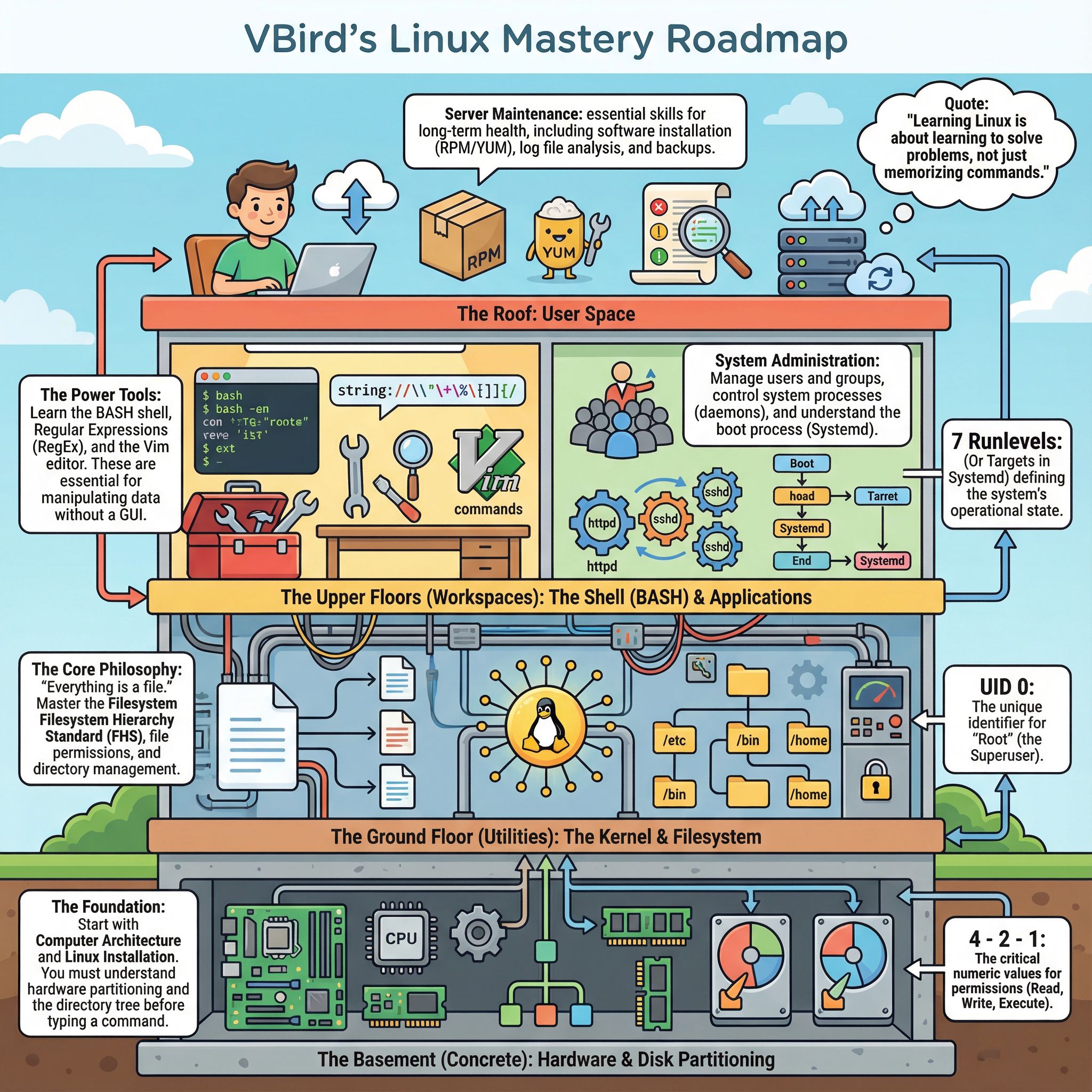 The AI generation interface turns structured text into a balanced visual process flow automatically.
Step 4: Refining and Sharing Your Visualized Outcomes
Your AI-generated draft is 90% complete. The final 10%—refinement and distribution—determines its impact. First, apply the "glance test": Can someone understand the main process in 10 seconds? If not, simplify. Remove unnecessary decorative elements that don't convey information. Use color strategically: one color for steps, another for decisions, a third for milestones. Ensure text is legible at the size it will be viewed—if sharing digitally, test on both desktop and mobile.
Sharing strategy matters. For internal teams, embed the infographic in your meeting follow-up email with specific callouts: "Maria, you're responsible for Step 3 as shown in green." For clients, export as high-resolution PDF with explanatory notes. For presentations, create a version with animated builds (one step at a time) using the AI generator's presentation mode. The key is timing: share within 24 hours of the meeting while context is fresh. This transforms the infographic from a nice-to-have to an essential reference document that drives action.
Mistake 1: Including Too Much Detail
Process infographics should show the forest, not every tree. Including minor sub-steps or excessive commentary creates visual clutter. Solution: Apply the "manager test"—if a department manager doesn't need to know it, remove it. Keep each step at a consistent level of granularity. Use appendix slides or linked documents for detailed specifications.
Mistake 2: Ignoring Decision Points
Meetings often contain conditional logic ("if X, then Y"), but notes frequently record only the main path. Solution: Explicitly mark decision points during note preparation. In your AI generator prompt, use words like "branch," "decision," or "if/then" to trigger proper flowchart diamond shapes. Test all possible paths from each decision.
Mistake 3: Poor Visual Hierarchy
When all elements look equal, viewers don't know where to start. Solution: Use size, color, and positioning to create flow. Start points should be visually distinct (often green), end points marked (often red), and critical path items emphasized. Most AI generators apply hierarchy automatically, but you can enhance it in the editor.
FAQ
How to visualize meeting notes that don't contain a clear process?
Not all meetings produce processes. For brainstorming or decision-making meetings, consider alternative visualizations: mind maps for ideas, timeline infographics for historical reviews, or comparison tables for options analysis. The key is matching the visualization to the meeting's purpose. Extract themes rather than steps, and use an AI generator's appropriate template. Even non-process meetings have structure—actions, decisions, topics—that can be visualized effectively to improve recall and accountability.
Can I make an infographic from handwritten meeting notes?
Yes, but with an extra step. First, transcribe or summarize your handwritten notes digitally. Focus on extracting key points rather than verbatim transcription. Use your phone's speech-to-text feature to dictate the main points quickly. The structuring process (identifying steps, owners, dependencies) remains the same. Handwritten notes often contain diagrams or arrows—preserve these relationships during transcription as they indicate process flow. AI generators work with text input, so any legible transcription will work.
How to create a process map from a meeting with multiple parallel tracks?
For parallel processes (e.g., marketing and development working simultaneously), create separate swimlanes in your visualization. In your notes preparation, tag items by department or team. When using an AI generator, specify "swimlane diagram" or "parallel processes" in your prompt. Clearly mark synchronization points where tracks intersect. The visual should show what happens concurrently versus sequentially. This complexity is where AI tools excel—manually aligning parallel tracks is time-consuming, but AI handles layout automatically.
What's the fastest way to make an infographic from notes without design skills?
AI infographic generators are specifically designed for this scenario. After preparing your notes as described, choose a process template, paste your text, and let the AI handle layout, colors, typography, and visual hierarchy. The entire creation takes 2-3 minutes. Tools like 1bit AI Infographic Generator require zero design expertise—you're essentially providing content and receiving a professional visual. The free credits allow you to experiment with different templates to find what works best for your meeting style.
How accurate are AI-generated process infographics from meeting notes?
Accuracy depends entirely on your input quality. With well-structured, sequential notes, AI generators achieve 90-95% accuracy in representing the correct flow. They excel at recognizing chronological order, conditional logic, and ownership assignment. The remaining 5-10% typically involves aesthetic adjustments or clarifying ambiguous connections. Always review the output against your original intent. The advantage is speed—even with minor edits, you save 80% of the time compared to manual creation while maintaining professional quality.
Conclusion
Turning meeting notes into a process infographic is no longer a time-intensive design task reserved for specialists. By following the four-step method—preparing notes, identifying the core process, using AI generation, and strategic sharing—you can create professional visualizations in 10 minutes that would previously take hours. This approach transforms passive notes into active alignment tools that drive implementation. Whether you're visualizing meeting outcomes for internal teams or creating client-facing process maps, the combination of structured thinking and AI automation makes visual communication accessible to everyone. The next time you leave a meeting with pages of notes, remember that the fastest path to clarity isn't more text—it's turning those notes into a visual process that everyone can understand and act upon.
Create Infographics New users get free credits to try it.