
Make Text-to-Speech Sound Natural
Improve AI voice delivery with SSML, pacing, pronunciation control, and emotional inflection.
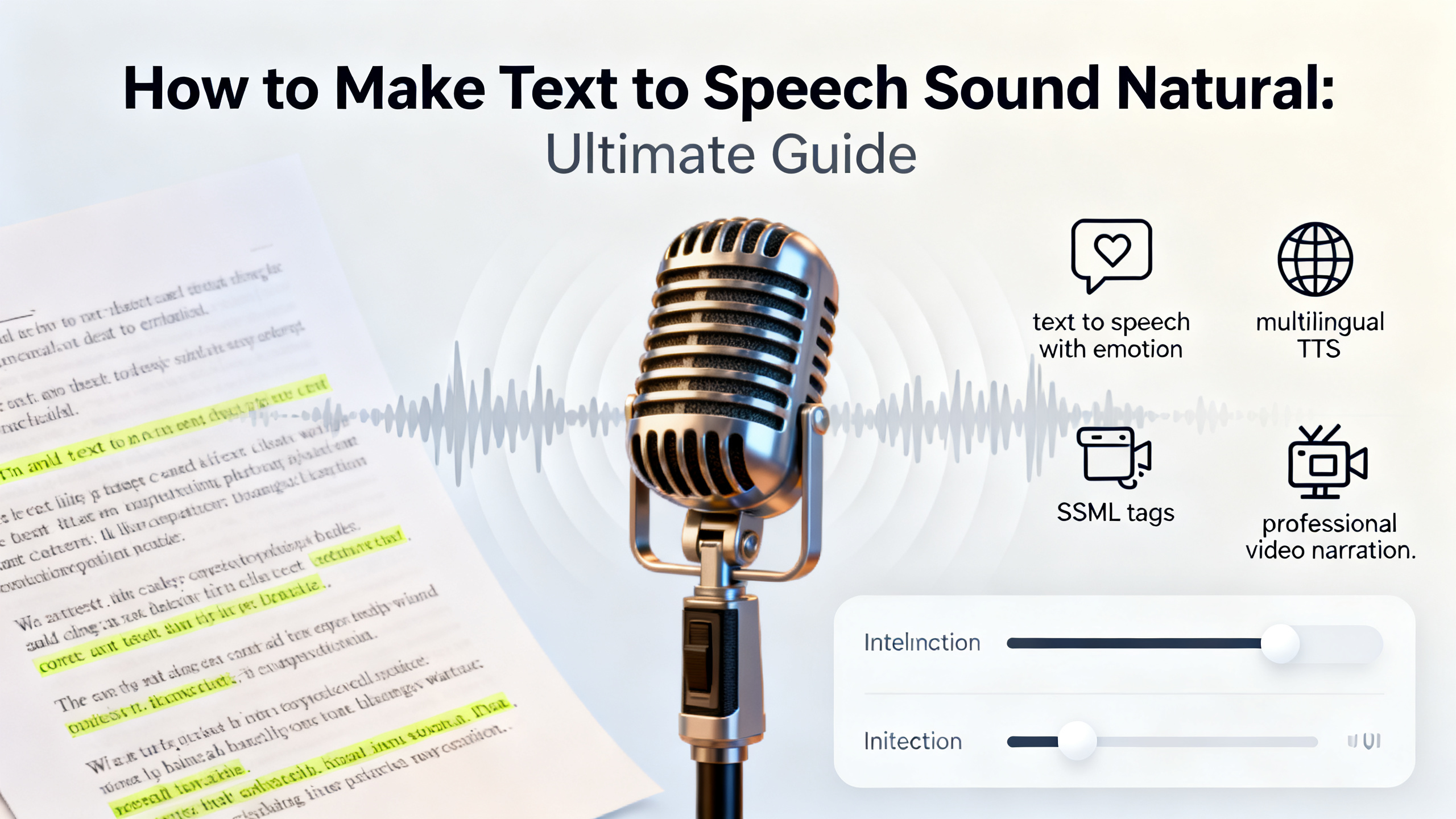
How to Make Text to Speech Sound Natural: The Complete Guide
Robotic, monotone AI voices are a thing of the past. Modern text-to-speech technology, when used correctly, can produce voiceovers indistinguishable from human narration. This ultimate guide is for video editors, educators, app developers, and content marketers who need professional-grade voiceovers without the studio costs. You'll learn exactly how to make text to speech sound natural using sound tags, SSML controls, pronunciation adjustments, and emotional inflection techniques. We'll cover everything from basic pacing to advanced multilingual TTS pronunciation control, with practical examples you can implement immediately. While we'll reference 1bit AI Text To Speech as an example platform that simplifies these techniques, the principles apply to any quality AI voice generator.
Create AI Voiceovers New users get free credits to try it.Quick answer
To make text to speech sound natural, you need to master three elements: strategic pauses and pacing, emotional inflection through SSML tags, and precise pronunciation control. The robotic effect comes from uniform speed, flat intonation, and incorrect word emphasis. By using sound tags like <break>, <prosody>, and <say-as>, you can create human-like rhythm and expression.
- Use SSML (Speech Synthesis Markup Language) to control speed, pitch, and pauses
- Add emotional context with tags that modify tone and emphasis
- Control pronunciation of technical terms, names, and multilingual content
- Vary speaking rate to match content type (slower for education, faster for demos)
- Layer multiple voice styles for different narrator personas
- Test with native speakers for authentic multilingual TTS output
- Use platforms with built-in SSML editors to simplify the process
Table of contents
- Why AI Voices Sound Robotic (And How to Fix It)
- Mastering SSML: The Secret to Realistic Text to Speech
- How to Add Emotion to Text-to-Speech Voiceovers
- Multilingual TTS Pronunciation Control Techniques
- Step-by-Step Tutorial: Creating Natural Voiceovers
- Common Mistakes and Troubleshooting
- Which TTS Software Has the Most Natural Voices?
- FAQ
Why AI Voices Sound Robotic (And How to Fix It)
Understanding why text-to-speech sounds unnatural is the first step toward fixing it. The primary culprits are uniform pacing, lack of emotional variation, and incorrect pronunciation. Human speech contains micro-pauses, emphasis shifts, and subtle pitch changes that convey meaning beyond the words themselves. Most basic TTS systems deliver text with mechanical regularity, creating the "robot voice" effect that undermines professional content.
The solution lies in mimicking human speech patterns. Natural conversation includes pauses for breath (0.2-0.5 seconds), emphasis on key words (increased volume and pitch), and speed variations based on content importance. For educational content, slower pacing with clear articulation works best. For product demos, energetic delivery with strategic pauses keeps attention. The key is intentional variation—something that doesn't happen automatically in most AI voice generators without proper tagging.
Use 1bit AI Text To Speech when you want a faster workflow
Instead of manually calculating pause durations and pitch changes, platforms like 1bit AI Text To Speech offer visual SSML editors and preset emotional tones. This is particularly useful for content marketers producing multiple videos weekly. You can apply "excited" or "calm" tones with one click, then fine-tune specific sections. New users get free credits to experiment with these features before committing to production work.
Create AI VoiceoversMastering SSML: The Secret to Realistic Text to Speech
SSML (Speech Synthesis Markup Language) is the industry standard for controlling how text is spoken. Think of it as HTML for voice—tags that tell the TTS engine exactly how to pronounce, pace, and emphasize content. While it might seem technical, modern platforms have simplified interfaces that make SSML accessible without coding knowledge.
The most critical tags for natural sound are <break>, <prosody>, and <emphasis>. The <break time="0.3s"> tag creates pauses between sentences or after important points. The <prosody rate="slow" pitch="+10%"> tag controls speed and tone. The <emphasis level="strong"> tag highlights key terms. For example, "This is <break time="0.4s"><emphasis level="strong">important</emphasis> information" creates a dramatic pause before emphasizing "important."
SSML Tag Function Example Usage Effect on Naturalness <break> Creates pauses <break time="0.5s"> Adds breathing room between ideas <prosody> Controls rate, pitch, volume <prosody rate="fast" pitch="+5%"> Creates excitement or urgency <emphasis> Adds word stress <emphasis level="moderate"> Highlights important concepts <say-as> Controls pronunciation <say-as interpret-as="date">2024-05-15</say-as> Ensures correct date reading <sub> Substitutes text <sub alias="World Health Organization">WHO</sub> Prevents acronym misreadingHow to Add Emotion to Text-to-Speech Voiceovers
Can you add emotion to text-to-speech? Absolutely. Emotional voiceovers require three elements: tonal variation, pacing changes, and strategic emphasis. Different emotions have distinct vocal patterns—excitement features higher pitch and faster rate, while seriousness uses lower pitch and deliberate pacing. The question isn't whether emotion can be added, but how precisely you can control it.
For e-learning modules, use calm, clear delivery with slightly slower pacing (rate="-10%") and moderate emphasis on key terms. For product launch videos, combine faster rate (rate="+15%") with higher pitch (pitch="+8%") and strong emphasis on benefits. For documentary narration, use neutral tone with varied pacing—slower for important facts, normal for connective tissue. The most common mistake is applying the same emotional tone throughout. Real conversations shift tone based on content, and your AI voiceover should too.
Multilingual TTS Pronunciation Control Techniques
Multilingual TTS presents unique challenges—proper names, technical terms, and code-switching between languages can sound jarring if not handled correctly. The key is pronunciation control through phonetic spelling and language tagging. Most advanced TTS systems support the <phoneme> tag, which lets you specify exact pronunciation using IPA (International Phonetic Alphabet) or language-specific phoneme sets.
For example, "Paris" should be pronounced differently in English (ˈpærɪs) versus French (paʁi). Use <phoneme alphabet="ipa" ph="paʁi">Paris</phoneme> for French context. For technical terms like "SQL," specify <say-as interpret-as="characters">SQL</say-as> to spell it out rather than pronouncing it as "sequel." When mixing languages in one script, use <lang xml:lang="es-ES"> for Spanish sections to trigger correct accent and pronunciation rules. Always test multilingual output with native speakers—automated systems can miss regional variations.
Step-by-Step Tutorial: Creating Natural Voiceovers
Follow this five-step process to transform any script into a natural-sounding AI voiceover. We'll use a product demo script as our example, but the principles apply to any content type.
Step 1: Analyze Your Script for Natural Pacing
Read your script aloud and mark natural pause points. These typically occur after commas, between clauses, and before important revelations. For a 100-word script, aim for 3-5 strategic pauses of varying lengths (0.2s for commas, 0.5s for section breaks).
Step 2: Identify Emotional Shifts
Label sections with intended emotions: "excited" for benefits, "serious" for specifications, "friendly" for calls-to-action. Each emotional shift requires corresponding SSML tags—increased rate and pitch for excitement, decreased rate for seriousness.
Step 3: Add SSML Tags for Control
Insert <break> tags at your marked pause points. Wrap key terms in <emphasis> tags. Use <prosody> tags around emotional sections. For our product demo: "<prosody rate="fast" pitch="+5%">Introducing the revolutionary new model</prosody><break time="0.4s">with <emphasis level="strong">unprecedented</emphasis> features."
Step 4: Control Pronunciation
Identify proper names, technical terms, and acronyms. Add <say-as> or <phoneme> tags as needed. For "The device uses AI (Artificial Intelligence)" use <sub alias="Artificial Intelligence">AI</sub> to ensure correct expansion on first mention.
Step 5: Test and Refine
Generate the voiceover and listen critically. Are pauses too short/long? Is emphasis too subtle/strong? Adjust tag values incrementally—change break times by 0.1s increments, adjust rate by ±5% increments. Generate multiple versions with slight variations to find the perfect balance.
Pro Tip: The Listening Test
After generating your voiceover, listen without watching the text. Note where your attention wanders or where phrasing feels awkward—these indicate areas needing adjustment. Better yet, have someone unfamiliar with the content listen and provide feedback on naturalness.
Which TTS Software Has the Most Natural Voices?
When evaluating which TTS software has the most natural voices, consider four factors: voice quality, SSML support, multilingual capabilities, and ease of use. The best platforms offer high-fidelity neural voices with emotional range, comprehensive SSML implementation, accurate multilingual TTS pronunciation control, and intuitive interfaces that don't require coding.
Look for platforms that provide both preset emotional tones and granular SSML control—this combination allows quick results with option for fine-tuning. Multilingual support should include not just language selection but also proper handling of mixed-language content and pronunciation dictionaries. For professional use, API access and batch processing are essential for scaling production. While voice quality is subjective, listen for natural breath sounds, smooth intonation curves, and appropriate pacing variations in sample outputs.
Why 1bit AI Text To Speech Excels at Natural Voice Generation
1bit AI Text To Speech combines studio-quality neural voices with visual SSML editing—no coding required. The platform offers emotional tone presets that automatically apply appropriate pacing and pitch changes, plus the ability to add custom tags to specific sections. With support for 50+ languages and pronunciation control for technical terms, it handles multilingual content seamlessly. The free credits allow thorough testing before production use.
Create AI Voiceovers Visual SSML editing makes it easy to control pauses, emphasis, and emotion without coding
Practical demo visual for this tutorial workflow.
Visual SSML editing makes it easy to control pauses, emphasis, and emotion without coding
Practical demo visual for this tutorial workflow.
FAQ
How do I make AI voice sound less robotic?
To make AI voice sound less robotic, focus on three areas: pacing, emphasis, and tone. Add strategic pauses using SSML break tags (0.2-0.5 seconds between sentences). Emphasize key words with emphasis tags to create natural stress patterns. Vary speaking rate and pitch with prosody tags to match content emotion. Start with these basic controls before exploring advanced emotional inflection. Most quality TTS platforms like 1bit AI offer visual editors for these adjustments without coding.
What are sound tags in text-to-speech?
Sound tags (SSML tags) are markup elements that control how text is spoken by TTS systems. Common tags include <break> for pauses, <prosody> for speed/pitch control, <emphasis> for word stress, and <say-as> for pronunciation guidance. They function like HTML for voice, telling the AI exactly how to deliver each section. Modern platforms often provide visual interfaces for adding these tags, making professional voiceover creation accessible without technical expertise.
Can you add emotion to text-to-speech?
Yes, you can add emotion to text-to-speech using SSML tags and emotional tone presets. The <prosody> tag controls pitch, rate, and volume—key components of emotional expression. For example, excitement uses higher pitch and faster rate, while seriousness uses lower pitch and slower pacing. Advanced TTS platforms offer preset emotional tones (excited, calm, serious) that automatically apply appropriate settings. For nuanced control, combine presets with custom tags on specific phrases.
How to control speed and pauses in TTS?
Control speed with the rate attribute in <prosody> tags: rate="slow" (70% normal), rate="medium" (100%), rate="fast" (130%). Control pauses with <break> tags: time="0.3s" for short pauses, "0.7s" for dramatic pauses, "1s" for section breaks. Natural speech varies speed based on content importance—slow for key points, normal for explanations, fast for transitions. Add pauses after important statements (0.5s) and between paragraphs (0.8s) for breathing room.
How to use SSML for better voiceovers?
Use SSML for better voiceovers by marking up your script with tags that control delivery. Start with <break> tags at natural pause points. Add <emphasis> tags to 2-3 key terms per paragraph. Use <prosody> tags to vary speed and pitch between sections. Apply <say-as> tags for correct pronunciation of dates, numbers, and acronyms. Test iteratively—generate, listen, adjust tag values. Platforms with visual SSML editors simplify this process significantly.
Conclusion
Making text to speech sound natural is both an art and a science. By mastering SSML tags, emotional inflection, and pronunciation control, you can create voiceovers that engage audiences and convey professionalism. Remember that natural speech varies—in pacing, emphasis, and tone—based on content and intent. The techniques covered here, from basic pause insertion to advanced multilingual TTS pronunciation control, will help you transform any script into compelling audio. Whether you're producing educational content, product demos, or multilingual narration, these principles ensure your AI voiceovers sound human, not robotic.
Create AI Voiceovers New users get free credits to try it.