1
Paste your YouTube URL
Paste the video link in the URL field. We support standard videos, Shorts, and unlisted content.
Paste any YouTube URL and get frame-accurate subtitles. Download SRT or VTT with precise timestamps—ready for YouTube Studio, Premiere Pro, or DaVinci Resolve. Optional translation to 100+ languages.
YouTube's built-in auto-captions are often out of sync and full of errors. Creators need SRT files with accurate timestamps to upload to YouTube Studio or edit in professional software. 1bit.ai extracts audio from your YouTube link and returns frame-accurate SRT and VTT files so your captions match the video perfectly.
We process YouTube URLs directly and generate word-level timestamps. Our AI handles multiple speakers, accents, and background music so your SRT export is clean and ready to publish. Supports standard videos, Shorts, and unlisted content.
SRT Export: Download SRT or VTT and upload to YouTube Studio for instant, accurate captions.
Timestamp Accuracy: Frame-accurate cues so captions stay in sync even in fast-paced or edited content.
Multi-Language: Generate subtitles in the original language, then export translated SRT for global audiences.
No Re-upload: Paste the link—no need to download the video. Get your subtitle file in minutes.
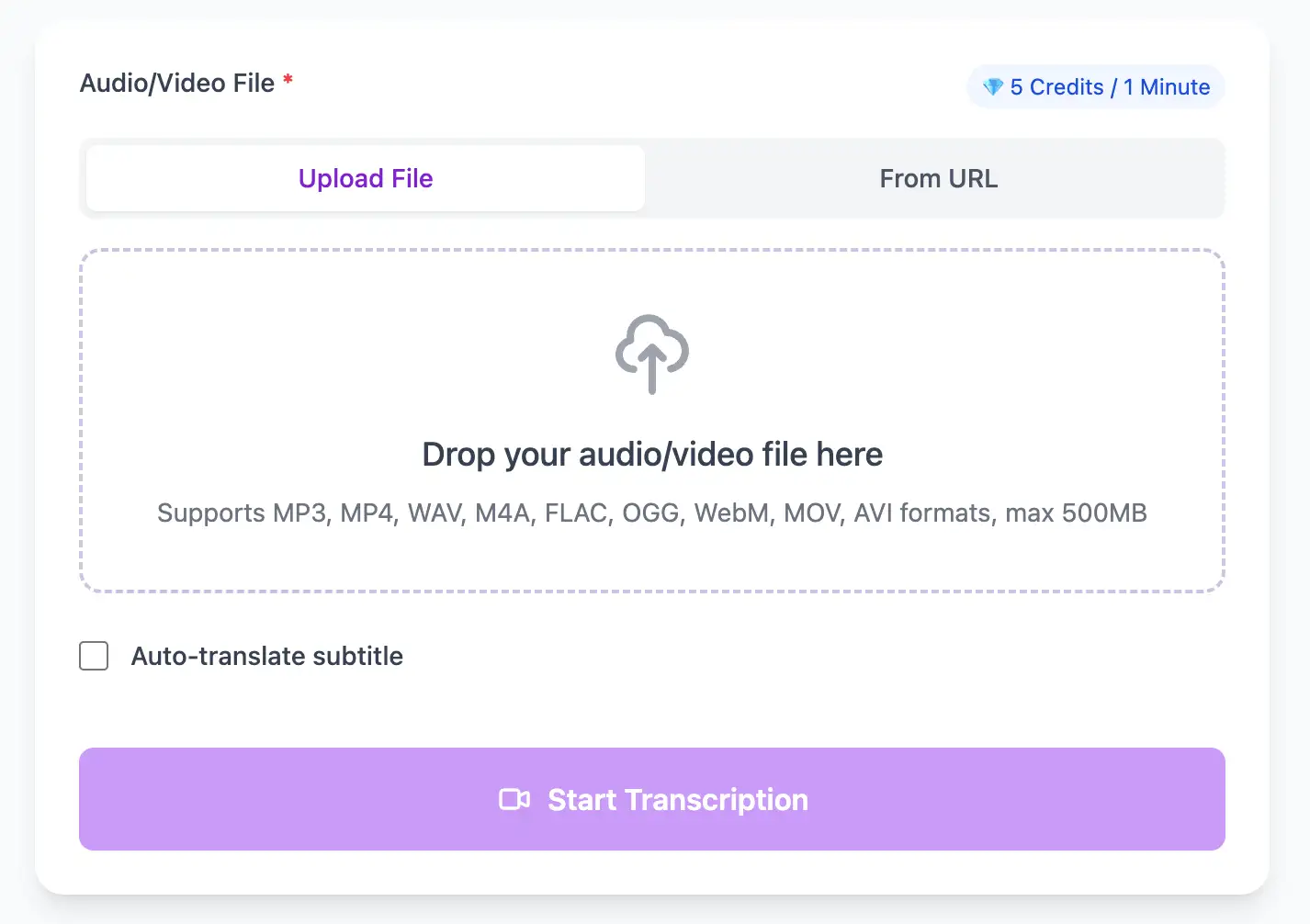
Extract perfect transcripts from YouTube Subtitles video files. Generate frame-accurate subtitles in SRT/VTT format, ready for video editing software and social media platforms.
Export YouTube Subtitles video transcripts as professional SRT, VTT subtitle files, or as TXT, PDF, DOCX, CSV (with or without timestamps).
Explore converters for formats similar to YouTube Subtitles
Paste, transcribe, download. Your captions are ready for YouTube or any editor.
Paste the video link in the URL field. We support standard videos, Shorts, and unlisted content.
Our AI returns a timestamped transcript. Review or edit segments if needed.
Export SRT for YouTube Studio, VTT for web players, or TXT/PDF for scripts.
Expert techniques for generating YouTube Subtitles video subtitles and transcripts with perfect timing
Clear audio is the foundation of accurate transcription. Use a quality microphone positioned 4-6 inches from the speaker, record in a quiet environment, and keep volume levels consistent throughout.
When uploading files, include relevant metadata like speaker names, topic, or industry. This context helps our AI better understand technical terminology and specialized vocabulary specific to your field.
While our AI achieves up to 99% accuracy, always review transcripts for critical applications. Use the time-synced playback feature to quickly verify unclear sections by listening to the original audio.
Choose your export format based on end use: SRT/VTT for video subtitles, plain text for documentation, Word/PDF/DOCX for professional reports (with or without timestamps), or CSV for spreadsheets. Using the right format saves time in downstream workflows.
Transform YouTube Subtitles files into searchable text, subtitles, and actionable insights for your specific workflow
Generate VTT or SRT subtitles for YouTube videos, TikTok, Instagram Reels and Facebook videos.
Turn lecture recordings, classes or webinars into searchable notes or bilingual subtitles.
Create multi-language captions for YouTube Subtitles ads and demos—clean exports, no watermark.
Convert MP3, WAV, M4A, and OGG into readable text or timestamped subtitles for blogs or show notes.
Upload your YouTube Subtitles video or paste a link, then download SRT/VTT subtitles or plain text transcripts
Upload audio and video files from your local device or simply paste a YouTube link
Click 'Transcribe' and wait for transcribing. It usually takes less than a minute to transcribe a 1-hour file
Export transcribed text as TXT, SRT, VTT, PDF, DOCX, or CSV—with or without timestamps.
Professional YouTube Subtitles video transcription with subtitle generation, translation, and export options
Paste any public link—YouTube, Vimeo, Google Drive, TikTok—and receive VTT/SRT/Text without downloading the file.
Download the same transcript as WebVTT (.vtt), SubRip (.srt), plain text (.txt), PDF, DOCX, or CSV—with or without timestamps. One click, no re-processing.
Transcribe once, then auto-translate the subtitle to 100+ languages—perfect for global audiences.
Create a free account and receive instant credits to test full transcription + translation—no payment info required.
Frame-perfect time codes let you upload subtitles straight to YouTube, VLC, Premiere Pro, TikTok.
All exported subtitle files are clean—no branding, no credit line, 100 % usable in professional workflows.
Get answers to common questions about YouTube Subtitles transcription and speech to text conversion
Yes. We offer free credits when you register so you can try full transcription, speaker identification, and exports (SRT, VTT, TXT, Word, PDF, DOCX, CSV) before committing to a paid plan.
We support MP3, WAV, M4A, FLAC, OGG, MP4, MOV, WebM, and AVI, plus direct URLs from YouTube, Vimeo, and similar platforms—no need to download the file first.
Yes. Standard plans support files up to 1GB. For longer or higher-resolution content, you can extract the audio track to reduce size, or contact us for enterprise options.
Yes. You can export as SRT or VTT for subtitles, plain TXT, Word, PDF, DOCX, or CSV. PDF and DOCX are available with or without timestamps. Subtitle files are frame-accurate and work with Premiere Pro, DaVinci Resolve, YouTube, and other platforms.
We support TXT, SRT, VTT, PDF, DOCX, and CSV. For PDF and DOCX you can choose versions with timestamps (for subtitles and reports) or plain text only. CSV is ideal for spreadsheets and data analysis.
We support 100+ languages, including English, Chinese (Mandarin and Cantonese), Spanish, French, German, Japanese, Arabic, Hindi, Portuguese, and many more, with strong support for accents and code-switching.
Processing is typically around 10:1—for example, a 1-hour file is usually ready in about 6 minutes. Very long or low-quality files may take a bit longer.
Yes. We use AES-256 encryption for uploads and processing. Your files are not shared with third parties and are automatically deleted from our servers 7 days after processing. You can also delete them manually at any time.
Our AI achieves up to 99% accuracy for clear audio. It handles accents, multiple speakers, and moderate background noise well. Most professional content reaches 95–98% accuracy without editing.
Yes. Export as SRT or VTT for frame-accurate subtitles, or as PDF, DOCX, or CSV (with or without timestamps) for reports. Works with Premiere Pro, Final Cut, DaVinci Resolve, YouTube, and other platforms.
Save YouTube videos or convert to MP4. Login once, use for free—no ads.
No credit card · 100+ languages · Results in minutes
Complete 7 consecutive days to collect higher rewards. Missing a day resets the streak.
Day 1
Today
Day 2
Upcoming
Day 3
Upcoming
Day 4
Upcoming
Day 5
Upcoming
Day 6
Upcoming
Day 7
Upcoming