
Fix Blurry AI Cartoon Art
Troubleshoot blurry AI cartoons, wrong styles, and inconsistent characters for cleaner results.
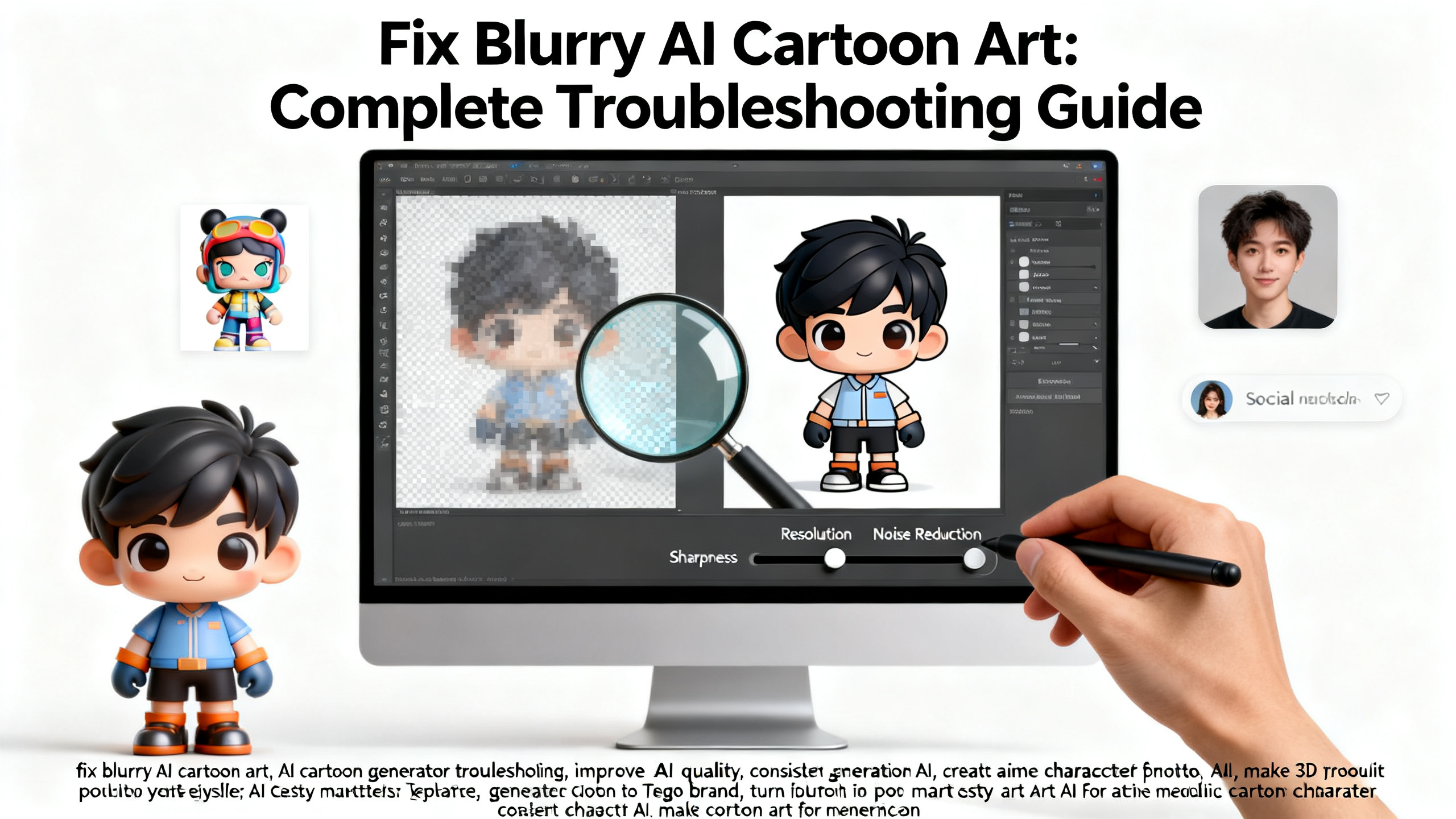
How to Fix Blurry AI Cartoon Art: A Complete Troubleshooting Guide
Struggling with blurry AI cartoon art, inconsistent characters, or outputs that don't match your vision? You're not alone. This comprehensive guide addresses the most common AI cartoon generator problems faced by illustrators, anime fans, ecommerce sellers, and social creators. We'll dive deep into technical solutions, prompt engineering techniques, and workflow optimizations that transform frustrating outputs into professional-quality cartoon art. Whether you're wondering "Why is my AI cartoon art blurry?" or "How to get consistent results from AI art?", this tutorial provides actionable steps to improve AI art quality. We'll also show how tools like 1bit AI Cartoon Generator can streamline your workflow with built-in optimization features.
Make Cartoon Art New users get free credits to try it.Quick answer
To fix blurry AI cartoon art, start by checking your input resolution (minimum 512x512 pixels), use specific style keywords like "crisp lines" or "sharp details," avoid conflicting artistic terms, and consider upscaling tools. For consistent character generation AI, maintain identical seed values and use detailed character reference sheets.
- Blurry outputs often stem from low-resolution inputs or conflicting style prompts
- Wrong styles result from vague prompts or mismatched artistic terminology
- Inconsistent characters require controlled seed values and detailed reference materials
- Quality improvements need both technical adjustments and creative prompt engineering
- Specialized AI cartoon generators offer built-in optimization for common problems
Table of contents
- Understanding Why AI Cartoon Art Gets Blurry
- Step-by-Step: Fixing Blurry Outputs in 5 Actions
- Correcting Wrong Styles and Artistic Mismatches
- Achieving Consistent Character Generation AI
- Advanced Troubleshooting and Quality Optimization
- FAQ
Understanding Why AI Cartoon Art Gets Blurry
Blurry AI cartoon art frustrates creators who expect crisp, professional results. The problem typically originates from three main sources: insufficient input resolution, conflicting style prompts, and technical limitations of the AI model. When you upload a low-quality reference image (under 512x512 pixels), the AI has limited data to work with, resulting in fuzzy outputs. Similarly, prompts containing contradictory terms like "watercolor" and "sharp lines" confuse the model, producing muddy visuals.
Technical factors also contribute significantly. Many AI cartoon generators default to lower resolutions for faster processing, and some models inherently struggle with fine details in certain art styles. Understanding these root causes is the first step toward fixing blurry AI cartoon art. For ecommerce sellers creating product illustrations or social creators making avatars, blurriness undermines professional credibility and visual appeal.
Use 1bit AI Cartoon Generator when you want a faster workflow
Instead of manually troubleshooting each blurry output, specialized tools like 1bit AI Cartoon Generator include built-in resolution optimization and style consistency features. The platform automatically suggests optimal dimensions for your chosen cartoon style and provides curated style keywords that avoid conflicting artistic terms. This saves hours of trial-and-error while delivering sharper results from the start. New users get free credits to try it with their own reference images.
Make Cartoon ArtStep-by-Step: Fixing Blurry Outputs in 5 Actions
This systematic approach addresses the question "AI cartoon art looks wrong how to fix" with concrete, actionable steps. Follow this sequence whenever you encounter blurry outputs, adjusting based on your specific use case.
5-Step Process to Improve AI Art Quality
- Audit Your Input Quality: Start with source images at minimum 1024x1024 pixels. For photo-to-cartoon conversions, ensure good lighting and contrast. Remove background noise using basic editing tools before uploading.
- Optimize Prompt Specificity: Replace vague terms like "cartoon style" with precise descriptors: "anime cel-shading with bold black outlines," "3D animation-style 3D rendering," or "vector art with flat colors." Include resolution hints: "4K detail," "sharp edges," "crisp linework."
- Adjust Technical Parameters: Increase resolution settings to maximum available. Set sampling steps between 30-50 for complex styles. Use negative prompts like "blurry," "fuzzy," "low quality" to steer the AI away from problematic outputs.
- Implement Post-Processing: Apply AI upscalers (Real-ESRGAN, Waifu2x) with 2x-4x magnification. Use sharpening filters judiciously (Unsharp Mask at 0.3-0.5 radius). Convert to vector format for infinitely scalable results.
- Test and Iterate: Generate multiple variations with slight prompt adjustments. Compare outputs side-by-side. Document successful combinations for future projects.
Real-world example: An Etsy seller creating cartoon pet portraits struggled with blurry fur details. By upgrading source photos to 1200x1200 pixels, adding "detailed fur texture" and "sharp whiskers" to prompts, and using 2x upscaling, they achieved print-ready quality for their merchandise. Pitfall to avoid: Over-sharpening creates artificial halos; always compare before/after versions at 100% zoom.
Correcting Wrong Styles and Artistic Mismatches
When your AI cartoon generator produces the wrong art style—anime instead of western animation, or 3D render instead of 2D vector—the issue often lies in prompt engineering and reference management. Different cartoon styles have specific terminology: "chibi" versus "super-deformed," "CalArts style" versus "Hanna-Barbera." Misusing these terms leads to frustrating mismatches.
Desired Style Correct Keywords Avoid These Terms Anime/Manga cel-shaded, screentones, key visual, promotional art cartoony, 3D animation, western animation 3D Toy/Blind Box blind box style, vinyl figure, collectible, smooth shading flat design, 2D, hand-drawn Vector Illustration clean lines, flat colors, minimal shading, geometric painterly, textured, brush strokes Retro Cartoon limited animation, rubber hose, vintage cel modern, CGI, realisticFor social creators designing matching avatar sets, consistency across multiple characters is crucial. Use style anchors: "in the style of [specific artist/show]," "consistent with previous character," "maintain uniform line weight." Provide multiple reference images showing the desired aesthetic from different angles. If generating a series, create a style guide document with approved color palettes, line styles, and proportion rules that you reference in every prompt.
Achieving Consistent Character Generation AI
"How to get consistent results from AI art?" ranks among the most searched questions for character designers and world builders. Consistency challenges appear when generating multiple views of the same character, creating family members with shared features, or producing sequential artwork for comics. The solution combines technical controls with strategic prompt design.
Start by establishing a character bible: detailed text descriptions covering facial features, clothing, accessories, colors, and proportions. Use this consistently across all prompts. Technical consistency requires seed control—saving and reusing the same random seed value ensures similar base generation. For visual consistency, create turnaround sheets: generate front, side, and back views using identical prompts with only the viewpoint changed. Advanced users employ embedding training: creating custom AI models trained specifically on their character designs.
FAQ
Why is my AI cartoon art blurry even with high-resolution inputs?
Blurriness with high-res inputs typically stems from conflicting style prompts or insufficient sampling steps. The AI may be interpreting "soft" or "painterly" too literally. Solution: Add "sharp details," "crisp edges," "defined lines" to your prompt. Increase sampling steps to 40+. Check for contradictory terms like "watercolor" alongside "vector"—choose one dominant style. Also verify your output resolution settings match your input quality.
How can I troubleshoot AI cartoon generator output that doesn't match my reference image?
First, ensure your reference image has clear contrast and distinct features. Use image weighting controls (img2img strength 0.6-0.8). In prompts, explicitly mention which elements to preserve: "maintain exact eye color from reference," "keep hairstyle identical." For complex transformations, try multi-stage generation: convert to basic shapes first, then add details incrementally. Tools with dedicated reference controls yield better fidelity than general AI art platforms.
What's the best way to improve AI art quality for print merchandise?
For print, generate at 300 DPI minimum. Start with 2x your final print dimensions. Use vector conversion for scalability without quality loss. Include print-specific terms: "print-ready," "high contrast," "solid colors." Test color separations early—some AI color combinations don't separate cleanly. Always proof at actual size before production. Consider generating in CMYK color space if your tool supports it, though most AI works in RGB.
How do I get consistent facial features across multiple character generations?
Create a facial feature formula: "almond-shaped blue eyes spaced 2.5 eye widths apart, nose with small rounded tip, cupid's bow lips." Use identical seed values with minor variations (change hair, clothing). Generate facial feature sheets separately, then composite. Some AI cartoon generators offer face consistency modes that maintain key features across generations. For best results, train a custom embedding or LoRA with multiple images of your character.
Can I fix blurry AI cartoon art without starting over?
Yes, several post-processing techniques can salvage blurry outputs. AI upscalers like Real-ESRGAN specialize in cartoon/anime enhancement. Selective sharpening in Photoshop (Smart Sharpen with 0.3-0.5 radius) helps. For line art, trace with vector tools (Illustrator's Image Trace). If colors are muddy, adjust curves to increase contrast. Sometimes re-generating just problematic areas via inpainting works better than redoing entire images. Always keep original generations for comparison.
Conclusion
Fixing blurry AI cartoon art requires understanding both technical parameters and creative prompt engineering. From addressing low-resolution inputs to mastering consistent character generation AI, each problem has systematic solutions. Remember that quality improvements come from iterative testing—document what works for your specific style and use case. Whether you're creating anime fan art, ecommerce illustrations, or social media avatars, these troubleshooting techniques will elevate your outputs from amateur to professional quality.
For those seeking optimized workflows, specialized tools like 1bit AI Cartoon Generator incorporate many of these solutions directly into their platform, reducing the need for manual troubleshooting. The key takeaway: blurry outputs, wrong styles, and inconsistencies are solvable problems with the right approach and tools.
Make Cartoon Art New users get free credits to try it.