Turn a Selfie into a 3D Blind Box Avatar
Create a 3D blind box avatar from a selfie with AI prompts and style tips.
How to Turn a Selfie into a 3D Blind Box Style Avatar in 5 Minutes
Ever scrolled through social media and seen those adorable, collectible-style 3D avatars that look like they popped straight out of a blind box? You might have wondered, "How do I make a 3D blind box avatar from a photo?" The answer is simpler than you think. This tutorial is for illustrators looking to speed up their concept art, anime fans wanting a unique profile pic, ecommerce sellers creating stylized product mascots, and social creators who need eye-catching visuals fast. In just five minutes, you'll learn how to turn a selfie into a 3D blind box avatar using AI. No design skills required. We'll walk through every step, from choosing the right photo to tweaking the final output, so you get a polished, shareable result. By the end, you'll have a custom avatar ready for your next project.
Make Cartoon Art New users get free credits to try it.Quick Answer
To turn a selfie into a 3D blind box avatar, use an AI tool like the 1bit AI Cartoon Generator. Upload a clear, well-lit selfie, select the "3D Blind Box" style preset, and generate. In under five minutes, you'll have a stylized avatar with exaggerated features and a toy-like finish. The process requires no manual editing—just a good photo and a few clicks.
- Choose a front-facing, high-resolution selfie with even lighting.
- Use the 1bit AI Cartoon Generator's dedicated 3D blind box style.
- Adjust settings like expression and background for personalization.
- Download the avatar in PNG or JPG for immediate use.
- New users get free credits to try the feature risk-free.
Table of Contents
- Why the 3D Blind Box Style Is So Popular
- Step-by-Step: Turn Selfie into 3D Blind Box Avatar
- Best Practices for a Flawless Avatar
- Common Mistakes and Troubleshooting
- Real-World Use Cases for Your Avatar
- FAQ
Why the 3D Blind Box Style Is So Popular
The 3D blind box aesthetic—think blind box or Sonny Angel—has exploded in popularity because it combines cuteness with collectibility. These avatars feature oversized heads, glossy textures, and simplified facial features that evoke a sense of nostalgia and playfulness. For creators, using a selfie to cartoon AI to generate this style offers a shortcut to a highly engaging visual identity. Unlike flat 2D cartoons, the 3D render gives depth and a tactile feel, making it perfect for profile pictures, merchandise, or brand mascots. The key is finding a tool that can accurately map your facial features onto a 3D model without losing your unique likeness. That's where the 3D blind box art generator comes in—it automates the complex rendering process, so you don't need to learn Blender or ZBrush. Whether you're an illustrator creating concept art or an ecommerce seller designing a product character, this style instantly grabs attention and feels premium.
Another reason for its popularity is versatility. A single avatar can be used across social media, gaming profiles, digital collectibles, and even printed on stickers or keychains. The create blind box style avatar trend is particularly strong among Gen Z and millennial audiences who value personalization. By using AI, you can produce multiple variations of yourself in different outfits or expressions, just like a real blind box series—but without the randomness. You control the outcome, and each version is ready in minutes.
Use 1bit AI Cartoon Generator When You Want a Faster Workflow
If you're tired of spending hours on manual 3D modeling or dealing with complex software, the 1bit AI Cartoon Generator streamlines the entire process. Its 3D blind box preset is optimized for selfies, ensuring your avatar retains your core features while adding that collectible charm. New users get free credits to test it out, so there's no risk.
Make Cartoon ArtStep-by-Step: Turn Selfie into 3D Blind Box Avatar
Follow these five steps to turn selfie into 3D blind box avatar using the 1bit AI Cartoon Generator. Each step includes practical tips to avoid common pitfalls.
- Step 1: Choose the Right Selfie – Pick a front-facing photo with your face centered and evenly lit. Avoid shadows across your eyes or mouth, as they can confuse the AI. A neutral expression works best, but a slight smile adds personality. Resolution should be at least 800x800 pixels for optimal detail.
- Step 2: Upload to the Generator – Go to the 1bit AI Cartoon Generator and click the upload button. Drag and drop your selfie. The tool accepts JPG, PNG, and WEBP formats. Wait a few seconds for the initial analysis—the AI will detect your face and key landmarks.
- Step 3: Select the 3D Blind Box Style – From the style library, choose "3D Blind Box." This preset applies exaggerated head proportions, smooth skin textures, and a glossy finish. You can also adjust the "cuteness" slider from 1 to 10—higher values make the head larger and features softer.
- Step 4: Customize Details – Add a background color (pastel shades work well) or choose an expression like happy, surprised, or winking. For ecommerce use, you can even add a simple prop like a hat or glasses. Preview the changes in real time.
- Step 5: Generate and Download – Click "Generate." The process takes about 30 seconds. Once done, review the avatar. If you're satisfied, download it as a transparent PNG for easy compositing. If not, tweak the settings and regenerate—no credit wasted.
That's it. In under five minutes, you've created a professional-grade 3D blind box avatar from a simple selfie. This workflow is repeatable, so you can generate a whole series of avatars for different platforms.

Best Practices for a Flawless Avatar
To get the best results when you create blind box style avatar, follow these expert tips. First, avoid busy backgrounds—the AI focuses on your face, but cluttered surroundings can introduce artifacts. Second, if you wear glasses, remove them for the selfie; the AI may distort them into the 3D model. Third, experiment with the "cuteness" slider: a value of 5-7 usually gives the most balanced look, while 8-10 is ideal for ultra-kawaii avatars. Fourth, use the same selfie for consistency if you plan to create a series—this ensures all avatars look like the same person. Finally, always download the highest resolution available (typically 1024x1024) for printing or large displays.
Another pro tip: if you're an ecommerce seller, consider generating avatars with neutral expressions first, then use the expression feature to create variations like "happy" or "excited" for different product contexts. This saves time and maintains brand consistency. For social media creators, adding a simple background like a solid color or gradient makes the avatar pop in profile circles.
Factor Best Practice Common Mistake Lighting Even, diffused light (e.g., near a window) Harsh shadows or backlighting Expression Neutral or slight smile Extreme expressions (open mouth, squinting) Background Plain wall or solid color Busy patterns or multiple people Resolution At least 800x800 pixels Low-res or pixelated imagesReal-World Use Cases for Your Avatar
Once you've learned how to turn selfie into 3D blind box avatar, the applications are endless. Illustrators can use avatars as base models for character design, saving hours of sketching. Anime fans can replace generic profile pictures with a personalized, collectible-style avatar that stands out in forums or Discord servers. Ecommerce sellers can create a consistent brand mascot—for example, a stylized version of themselves holding a product—and use it across listings, social media, and packaging. Social creators on TikTok or Instagram can generate a series of avatars with different outfits or expressions to use as stickers, merch, or even NFT collections. The 3D blind box style is particularly effective for unboxing videos or as a channel logo because it's instantly recognizable and shareable.
Another emerging use is in virtual events and metaverse platforms. Many users now create avatars for Zoom backgrounds or VR chat profiles. The 3D blind box aesthetic fits perfectly in these spaces because it's lighthearted and non-intimidating. If you're a content creator, consider using your avatar as a thumbnail element—it can increase click-through rates by adding a human (but stylized) touch. The key is to experiment with different styles and see what resonates with your audience.
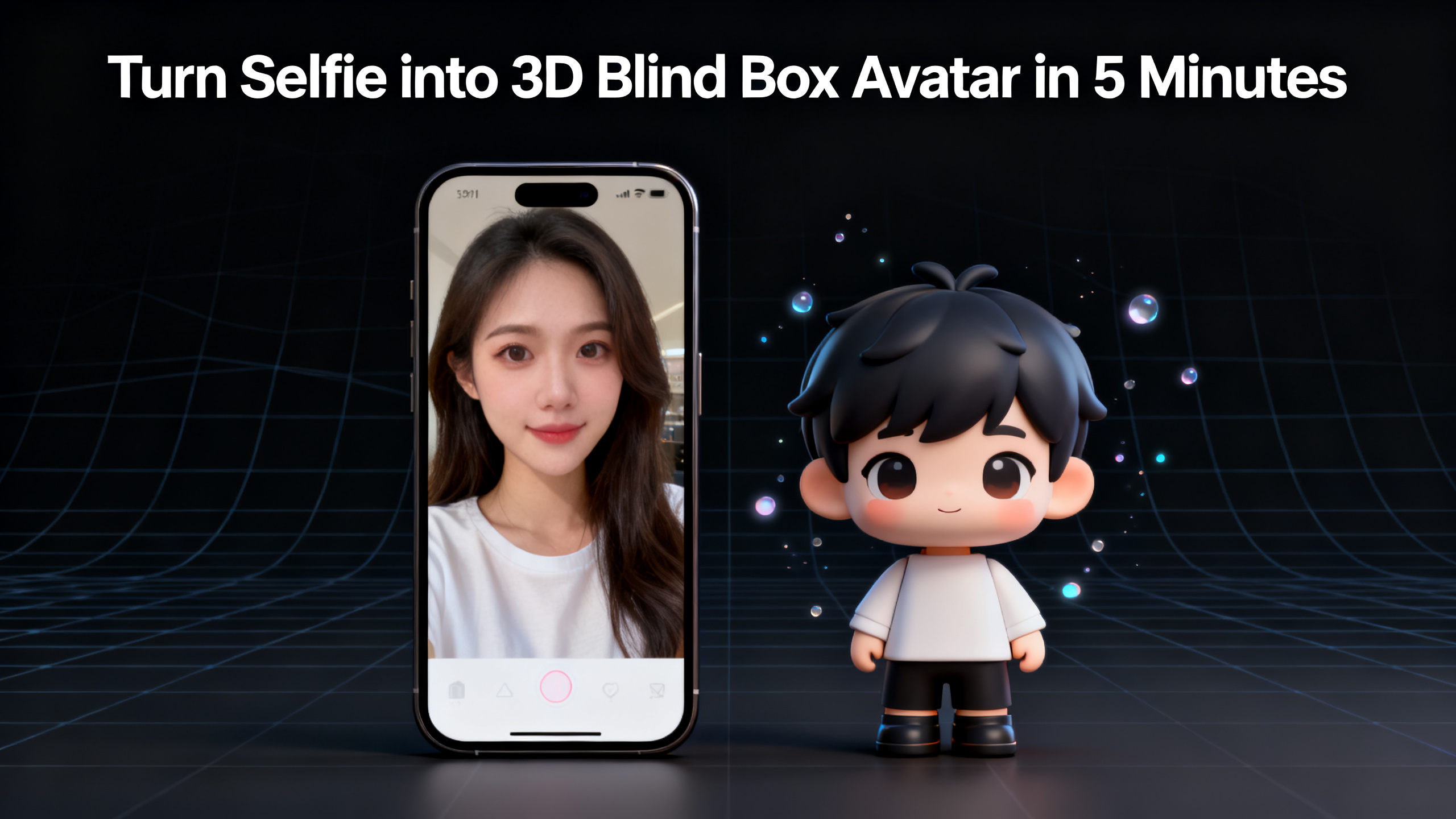
Practical demo visual for this tutorial workflow.FAQ
How to make a 3D blind box avatar from a photo?
Upload a clear, front-facing selfie to an AI tool like the 1bit AI Cartoon Generator, select the "3D Blind Box" style, and generate. The AI maps your facial features onto a 3D model with exaggerated proportions and a glossy finish. The process takes under five minutes and requires no manual editing.
What AI tool creates blind box style art?
The 1bit AI Cartoon Generator is a dedicated tool that offers a 3D blind box preset. It's optimized for selfies and provides real-time customization like expression and background. New users get free credits to try it without any upfront cost.
Can I use the avatar for commercial purposes?
Yes, avatars generated with the 1bit AI Cartoon Generator can be used for commercial projects, including product branding, social media marketing, and merchandise. Always check the specific terms of service for the tool you use, but most AI generators grant full usage rights.
Do I need design skills to create a 3D blind box avatar?
No. The AI handles all the complex rendering. You only need to upload a good selfie and choose your preferred settings. The tool is designed for beginners and professionals alike, with intuitive sliders for customization.
How long does it take to generate one avatar?
The entire process—from upload to download—takes about five minutes. The actual generation step is around 30 seconds. This makes it easy to create multiple avatars in a single session, perfect for building a series or testing different styles.
What if the avatar doesn't look like me?
First, check your source photo—ensure it's well-lit and your face is centered. If the issue persists, adjust the "cuteness" slider to a lower value for a more realistic proportion. You can also try a different expression preset. The AI learns from the input, so a better photo yields better results.
Conclusion
Learning to turn a selfie into a 3D blind box avatar opens up a world of creative possibilities. Whether you're an illustrator, anime fan, ecommerce seller, or social creator, this AI-powered workflow saves hours and delivers professional results. The 1bit AI Cartoon Generator makes the process effortless—just upload, customize, and generate. With free credits for new users, there's no reason not to try it. Start creating your collectible-style avatar today and see how it transforms your online presence.
Make Cartoon Art New users get free credits to try it.