Transcribe Google Meet Recordings Automatically

Upload your Meet recording from Google Drive or paste the link. Get a full transcript with speaker labels and AI-generated meeting summaries in minutes.

10+ Formats
100+ Languages
AI-Powered
Live Demo

Google Meet Transcription Guide

Google Meet saves recordings to Google Drive, but searching through a 60-minute video to find one decision or quote is a huge time sink. 1bit.ai transcribes your Meet recordings into searchable, speaker-labeled text in minutes. Whether you're a remote-first team, a teacher running virtual classes, or a recruiter conducting video interviews, you'll have a permanent, searchable record of every important conversation.

Technical Specs

Google Meet records meetings as MP4 files stored in Google Drive. Simply download the MP4, upload it to 1bit.ai, or share the Google Drive link directly. Our engine handles Meet's WebRTC-compressed audio codec and automatically compensates for bandwidth-related audio artifacts common in video conferencing.

High Accuracy
Fast Processing
Multi-format

Google Meet Transcription for Every Team

1

Remote Teams: Build a complete, searchable archive of team meetings that remote and async colleagues can reference any time.

2

Online Education: Teachers can share accurate transcripts of virtual classes, helping students with learning differences or language barriers.

3

Sales Calls: Capture every prospect objection, question, and buying signal from your Google Meet sales calls for coaching and CRM notes.

4

Legal & Compliance: Maintain accurate records of board meetings, compliance reviews, and client consultations with timestamped transcripts.

Google Meet recording transcription tool - Drive link to text converter
Ultra Fast

Convert Google Meet Video to Text & Subtitles Fast

Extract perfect transcripts from Google Meet video files. Generate frame-accurate subtitles in SRT/VTT format, ready for video editing software and social media platforms.

Flexible Export

Export Google Meet Transcripts in Multiple Formats

Export Google Meet video transcripts as professional SRT and VTT subtitle files for video editing, or download as TXT.

SRT / VTT / TXT
Export transcripts in multiple formats - SRT, VTT, TXT

Google Meet Recording Transcription Workflow

From Drive recording to shareable transcript in three steps.

1

Find your recording in Google Drive

Google Meet recordings are saved automatically to the meeting organizer's Drive under 'Meet Recordings'. Download the MP4 or copy the sharing link.

2

Upload to 1bit.ai

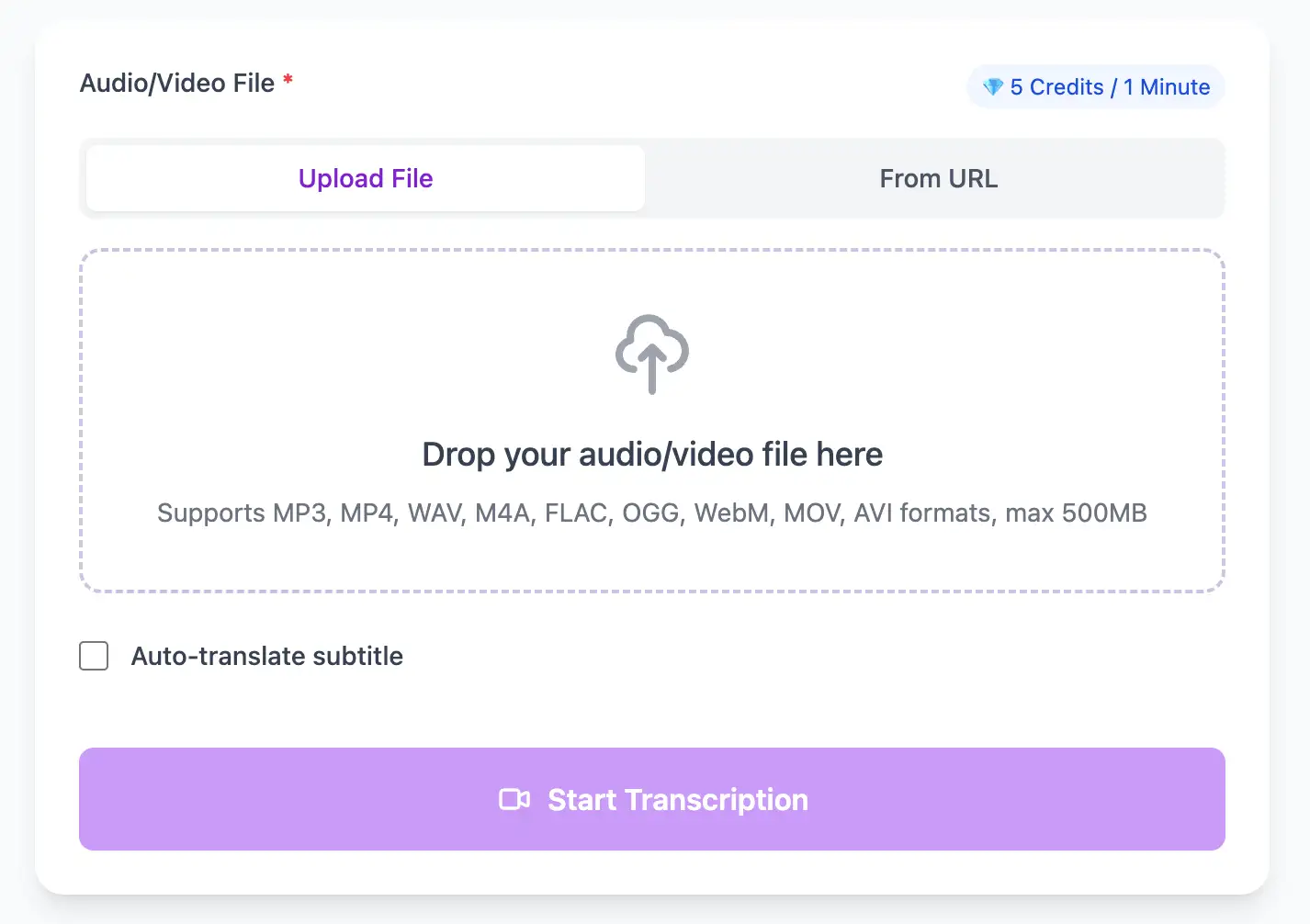
Drag the MP4 file into 1bit.ai or paste the Google Drive sharing link. Select the spoken language and enable speaker detection.

3

Export and share

Get a speaker-labeled transcript with timestamps. Export as TXT for notes, SRT for captions, or share the transcript link with absent teammates.

Teams That Love Meet Transcription

How remote-first teams stay aligned without re-watching recordings.

“I share a transcript recap after every client Meet. It's become our secret weapon for reducing follow-up emails.”

Priya Singh

Account Executive

“Our distributed team spans 6 time zones. Meet transcripts let everyone stay in sync without attending every call.”

Lucas Mendez

Head of Product

Optimizing Google Meet Recording Quality

Expert techniques for generating Google Meet video subtitles and transcripts with perfect timing

Check Drive Recording Quality

Google Meet saves recordings at 720p by default. For better audio, use a headset or USB microphone rather than your laptop's built-in mic, which captures more room noise.

Share the Drive Link for Faster Uploads

Instead of downloading and re-uploading the MP4, set the Google Drive file to "Anyone with the link" and paste the URL directly into 1bit.ai—no download needed.

Mute Yourself When Not Speaking

Encourage participants to stay muted when not speaking. Constant background noise from multiple open mics is the biggest cause of transcription errors in Google Meet recordings.

Wait for the Recording to Finish Processing

After a long meeting, Google Drive may take 10-20 minutes to process the recording before it's downloadable. Check the Drive notification before trying to access the file.

Google Meet Video Transcription for Every Workflow

Transform Google Meet files into searchable text, subtitles, and actionable insights for your specific workflow

Convert Speech to Text in Three Easy Steps

Upload your Google Meet video or paste a link, then download SRT/VTT subtitles or plain text transcripts

1

Upload Audio File

Upload audio and video files from your local device or simply paste a YouTube link

2

Click Transcribe

Click 'Transcribe' and wait for transcribing. It usually takes less than a minute to transcribe a 1-hour file

3

Export as Text

Export transcribed text as TXT, SRT, and VTT.

Powerful Google Meet Transcription Features

Professional Google Meet video transcription with subtitle generation, translation, and export options

Google Drive & Direct MP4 Upload

Download the MP4 from Google Drive or share the Drive link directly. We handle all Meet export quality levels automatically.

Multi-Format Export

Download the same transcript as WebVTT (.vtt), SubRip (.srt) or plain text (.txt)—one click, no re-processing.

Built-in Translation

Transcribe once, then auto-translate the subtitle to 100+ languages—perfect for global audiences.

Free Credits on Sign-Up

Create a free account and receive instant credits to test full transcription + translation—no payment info required.

Accurate Timestamps

Frame-perfect time codes let you upload subtitles straight to YouTube, VLC, Premiere Pro, TikTok.

No Watermark

All exported subtitle files are clean—no branding, no credit line, 100 % usable in professional workflows.

Frequently Asked Questions

Get answers to common questions about Google Meet transcription and speech to text conversion

Where is my Google Meet recording saved?

Google Meet recordings are automatically saved to the meeting organizer's Google Drive under a folder called "Meet Recordings".

Can I paste a Google Drive link instead of uploading the file?

Yes. Make sure the Drive link sharing is set to "Anyone with the link" and paste it directly into 1bit.ai for automatic transcription.

Does it identify who said what in the transcript?

Yes. Speaker diarization automatically labels different participants. You can then rename speakers to real names for a clean meeting minutes document.

Is Google Meet transcription free?

New users receive free credits on sign-up to test full transcription without a credit card. Paid plans cover hours of transcription per month at affordable rates.

Can I transcribe Google Meet recordings in languages other than English?

Yes. We support 100+ languages. Simply select the spoken language before processing and get an accurate transcript in your language.

Can I share the transcript with my team?

Yes. Export as TXT, SRT, or share a live link directly with teammates who missed the meeting.

No credit card ¡ 100+ languages ¡ Results in minutes